Saturday, March 9, 2013

FileNotFoundException after SharePoint workflow DelayActivity

I noticed that a SharePoint 2010 workflow that's deployed to my dev SharePoint farm kept logging " failed to run" in the Workflow History after every so often.  Turned out that every time the Delay Activity comes out of its time out, this error is logged.  The workflow is stuck forever in the In Progress status though.  Found in the SharePoint ULS log the following everytime this happened:

03/09/2013 20:50:13.76  OWSTIMER.EXE (0x09F0)                    0x20E0 SharePoint Foundation          Legacy Workflow Infrastructure 75yn Unexpected Load Workflow Assembly: System.IO.FileNotFoundException: Could not load file or assembly 'My.Content.WF.ClientReview, Version=1.0.0.0, Culture=neutral, PublicKeyToken=1f310f3d9eb1728b' or one of its dependencies. The system cannot find the file specified.  File name: ''My.Content.WF.ClientReview, Version=1.0.0.0, Culture=neutral, PublicKeyToken=1f310f3d9eb1728b'     at System.Reflection.RuntimeAssembly._nLoad(AssemblyName fileName, String codeBase, Evidence assemblySecurity, RuntimeAssembly locationHint, StackCrawlMark& stackMark, IntPtr pPrivHostBinder, Boolean throwOnFileNotFound, Boolean forIntrospection, Boolean suppressSecurityChecks)     at System.Reflection.RuntimeAssembly.InternalLoadAssemblyName(AssemblyName assemblyRef, Evidence assemblySecurity, RuntimeAssembly reqAssembly, S... 1746069c-9c8e-2075-8ca7-47e33a38cd91
So what was going on?  My workflow only references SharePoint assemblies, and itself is indeed in the GAC.  A closer look shows that this was thrown from OWSTIMER.EXE.  So it's the timer job service.  Apparently the Delay Activity relyies on the timer job service to fire.  Just like w3wp.exe, it needs a restart to recognize newly changed assemblies in the GAC.  Sure enough, I restarted the timer job service, started a new WF, and the Delay Activity fired successfully after coming out of its timeout. 

Tuesday, September 11, 2012

TaxonomySession.DefaultSiteCollectionTermStore is null

There are many times when a custom SharePoint programming logic needs to refere TaxonomySession.DefaultSiteCollectionTermStore. For example, when adding a custom field of Managed Metadata Type through feature activation, it is necessary to use feature receiver to run code to hook the custom field to a termset or term in the MMS:

TaxonomySession session = new TaxonomySession(site);
session.GetTermSet(session.DefaultSiteCollectionTermStore.Name, termGroup, termsetName);

In a new environment this often results in an obscure "NullReferenceException: Object reference not set to an instance of an object.". However, nothing seems wrong in the MMS, service application associations (the MMS is in the default group), or the site itself. The problem is in the MMS applicatino's proxy. In the Service Applications list, highlight the MMS application proxy, click Propertys in the Ribbon, the proxy application's properties show up in a modal dialog. Notice that the 2nd checkbox is unchecked:


It's unclear why a MMS proxy would be created this way.  Could be a minor bug.  This is what determines the DefaultSiteCollectionTermStore for a site collection though.  Check this, and the code would go through succcessfully.

Wednesday, August 15, 2012

Invalid Field Name execption when deploying SharePoint custom content types

If you develop custom fields and custom content types in Visual Studio 2010 for SharePoint, you would typically create an Elements.xml that contains all the custom field definitions, and then Content Type files (essentially more Elements.xml) that has elements that reference the custom fields.   Once it's packaged up and deployed, there is often this exception upon feature activation:

12 10:31:54.62  w3wp.exe (0x11B4)                        0x13E4 SharePoint Foundation          Runtime                        tkau Unexpected System.ArgumentException: Invalid field name. {96e21f1d-61e9-449e-be9f-1b6b4a1f25b6} http://myspsite.local/sites/test     at Microsoft.SharePoint.Administration.SPElementDefinitionCollection.ProvisionFieldsAndContentTypes(SPFeaturePropertyCollection props, SPSite site, SPWeb web, Boolean fForce)     at Microsoft.SharePoint.Administration.SPElementDefinitionCollection.ProvisionElements(SPFeaturePropertyCollection props, SPWebApplication webapp, SPSite site, SPWeb web, Boolean fForce)     at Microsoft.SharePoint.SPFeature.Activate(SPSite siteParent, SPWeb webParent, SPFeaturePropertyCollection props, Boolean fForce)     at Microsoft.SharePoint.SPFeatureCollection.AddInternal(SPFeatureDefinition featdef, Version version, SPFeaturePropertyCollection properties, Boolean force, Boolean fMarkOnly)     at ... 34b0893c-1158-4874-8460-e84ef3bb6ef1.....


There are many causes for this particular exception, as well documented in the SharePoint communities.  For example, name collison is a common cause. 

I have discovered a new scenario where the exception can be caused by how the Elements.xml files are ordered in the feature manifest.   In a custom content type Elements.xml, the entries are typically like this if the custom field is already defined:

<fieldref displayname="Widget Name" id="{96E21F1D-61E9-449E-BE9F-1B6B4A1F25B6}" required="FALSE" showineditform="TRUE" showinnewform="TRUE"/>

Notice that there is no Name attribute, because the Name is already defined in the Field definition. 

Now in the feature manifest, if the field definition Elements.xml does not come before any of the content type definition Elements.xml, the above exception would be thrown:

<Feature xmlns="http://schemas.microsoft.com/sharepoint/" Title="My Content Types and Fields" Description="" Id="b02c33b1-aff0-41e5-9511-1b99023c5455" Scope="Site"> <ElementManifests> <ElementManifest Location="Research Page\Elements.xml" /> <ElementManifest Location="News Page\Elements.xml" /> <ElementManifest Location="FieldDefinitions\Elements.xml" /> </ElementManifests> </Feature>

Apparently the feature activation process is not smart enough to figure out the dependency among these and simply goes about it from top to bottom.  To make SharePoint happy, simply move the Elements.xml that contains field definitions to the top:

<Feature xmlns="http://schemas.microsoft.com/sharepoint/" Title="My Content Types and Fields" Description="" Id="b02c33b1-aff0-41e5-9511-1b99023c5455" Scope="Site"> <ElementManifests> <ElementManifest Location="FieldDefinitions\Elements.xml" /> <ElementManifest Location="Research Page\Elements.xml" /> <ElementManifest Location="News Page\Elements.xml" /> </ElementManifests> </Feature>

And the feature can be activated successfully now.

SharePoint 2010 Built-in Fields

Here're the SharePoint 2010 Built-in fields, or OOB fields.  Always need these when developing custom content types that inherit from a built-in one.

http://www.johnholliday.net/download/fieldswss.htm

Monday, May 7, 2012

WIF claims authentication System.ArgumentException

When creating a custom STS authentication provider using the Windows Identity Foundation SDK, the default website the Visual Studio template creates works fine by itself.  However, when integrating with SharePoint, this would error out with this exception when hitting the SharePoint http:///_trust:

Exception of type 'System.ArgumentException' was thrown. Parameter name: encodedValue. 

The trace stack would have SPClaimProviderManager.DecodeClaimFromFormsSuffix(...) as the last method in the call.  It is very sketchy as to what the problem is. 

The problem, as it turns out, is in the form authentication cookie name.  By default ASP.NET web has .ASPXAUTH as the cookie name defined.  For example:


When a SharePoint web application is configured to use FBA or custom authentication provider, it actually expects a forms auth cookie name of "FedAuth".  This can be easily seen using Fiddler. 

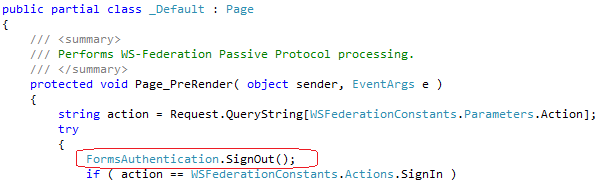
When the custom STS web application does a post to http:///_trust, the mismatch in the FBA cookie name resulted in that SharePoint can't find the authentication ticket.  So how to fix this?  the STS web (created by the Visual Sudio WIF SDK template) needs its authentication ticket for the default.aspx to process properly and then post to  to work.  So we can't just remove it, nor can we change its name to "FedAuth", as this would confuse SharePoint.   Changing .ASPXAUTH to some other name has no effect.  

The solution I found, is to expire the STS Web's authentication ticket in default.aspx.  This way, default.aspx processing is not affected, but it won't post the cookie to /_trust.  Add the line in the box into default.aspx.cs:


Once this is added, the post request in Fiddle changed from:


to:


This allows SharePoint's /_trust/ to create its own FBA ticket cookie and redirect to /_layouts/Authenticate.aspx:

And everything from there works fine and user can be logged in normally.


WIF, Claim based authentication, Keyset does not exist

There are many discussions on this often encountered exception when developing STS authentication using Windows Identity Framework in either a custom web application or SharePoint custom authentication provider. 

Exception of type 'System.Security.CryptographicException' was thrown. Keyset does not exist.

As many posters have pointed out, it's because reading the primate key to descrypt the STS message failed.  There are several reason that the private key cannot be read:
  • The private is not available in the right place.  For a web application that runs under a service account, it typically reads from the machine's certificate store (Local, My).  If the certificate with the private key is not in the machine store, the application process won't find it.  Typically application can be configured to use the service account's certificate store too.  If that's the case, you must login as the service account, and make sure the certificate is in the Current User store of the service account.
  • The private key itself has problems.  Most often in development, it is because the self-generated certificate is not trusted on the server itself.
  • The private key is good and in the right place, but the process identity doesn't have read access to it.  Now this is the most common and most difficult cause.  The private keys of the certificates in the Macine Store are stored in the folder C:\ProgramData\Microsoft\Crypto\RSA\MachineKeys on Windows 2008 and Windows 7.  What is confusing is that it's not the whole folder that the process identity needs access to (An admin user can't set permissions on this folder by default anyway), it's the specific private key file that the permission should be granted upon.   Identifying the correct private key file proves to be a tricky thing.  If the server has few certificate related activities, you can guess that the file with the most current date is the one you need.  Otherwise, we need a tool called FindPrivateKey, which is in the WCF Examples download provided by Microsoft: http://msdn.microsoft.com/en-us/library/aa717039.aspx  Then grant at least read permission on the file to the process identity.  The error should go away.

Monday, April 16, 2012

Sign unsigned .net assemblies

Many third party assemblies, particularly the open source ones, are not strongly named. If you must put an assembly like this into the GAC (e.g. for full trust access), you have to sign it so it's strongly named.

http://buffered.io/posts/net-fu-signing-an-unsigned-assembly-without-delay-signing offers the detailed steps to disassemble and reassemble an assembly:
  1. use ildasm.exe to disassemble into .il file
  2. if another assembly that this one references is just modified and signed using this method, need to modify the reference in this assembly with the public key added.
  3. rename the original assembly file .dll to something else so it's not overwritten by the next step.
  4. use ilasm.exe to re-assemble the .il file into .dll

And that's it! Now the assemly is strongly named.